


A Website Visitors segment lets you target companies that have already visited your website. Use this to reach out while their interest is fresh.

Steps
- Go to Segments from the left sidebar and click New Segment.
- Enter a name for your segment, then click Website Visitors under the Companies section and click Search Visitors.
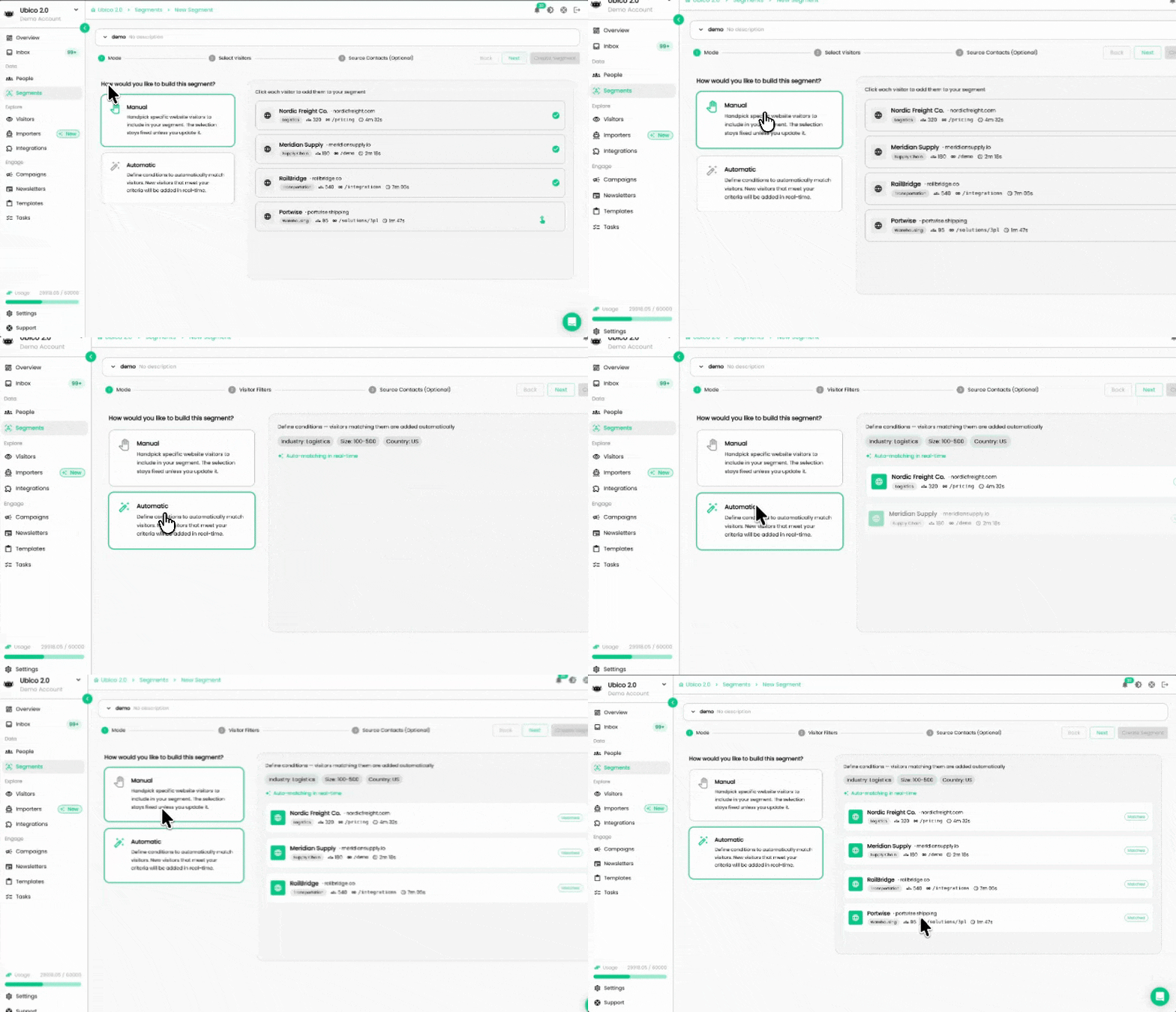
- Choose your mode:
- Manual — handpick specific visitors from the list. Each entry shows company name, industry, employee range, country, pages visited, session count, and last seen. The selection stays fixed unless you update it.
- Automatic — define conditions to automatically match visitors. New visitors that meet your criteria are added in real-time.
- Click Next.
If you chose Manual

- Browse the visitor list, filter by website, or use search to find specific companies.
- Click each company you want to add to the segment.
- Click Next when done.
If you chose Automatic

- Set your conditions using attributes like Industry, Visited URL, Employee range, Country, and more.
- Use Add Condition to stack multiple filters. Use the OR/AND toggle to control how they relate. Use Add Condition Group for nested logic.
- The Segment Summary on the right shows how many unique visitors match your conditions in real-time.
- Click Next when your filters are set.
Source Contacts (Optional)
This step lets you configure which contacts to find at your matched companies. Set Person Filters to narrow down by Location, Job title, Department, Seniority, and Contacts per company. If you skip this step, Ubico creates the segment without sourcing individual contacts.
- Set your Person Filters to define which contacts to find at each matched company.
- Click Create Segment when ready, or skip directly to Create Segment without applying any filters.
