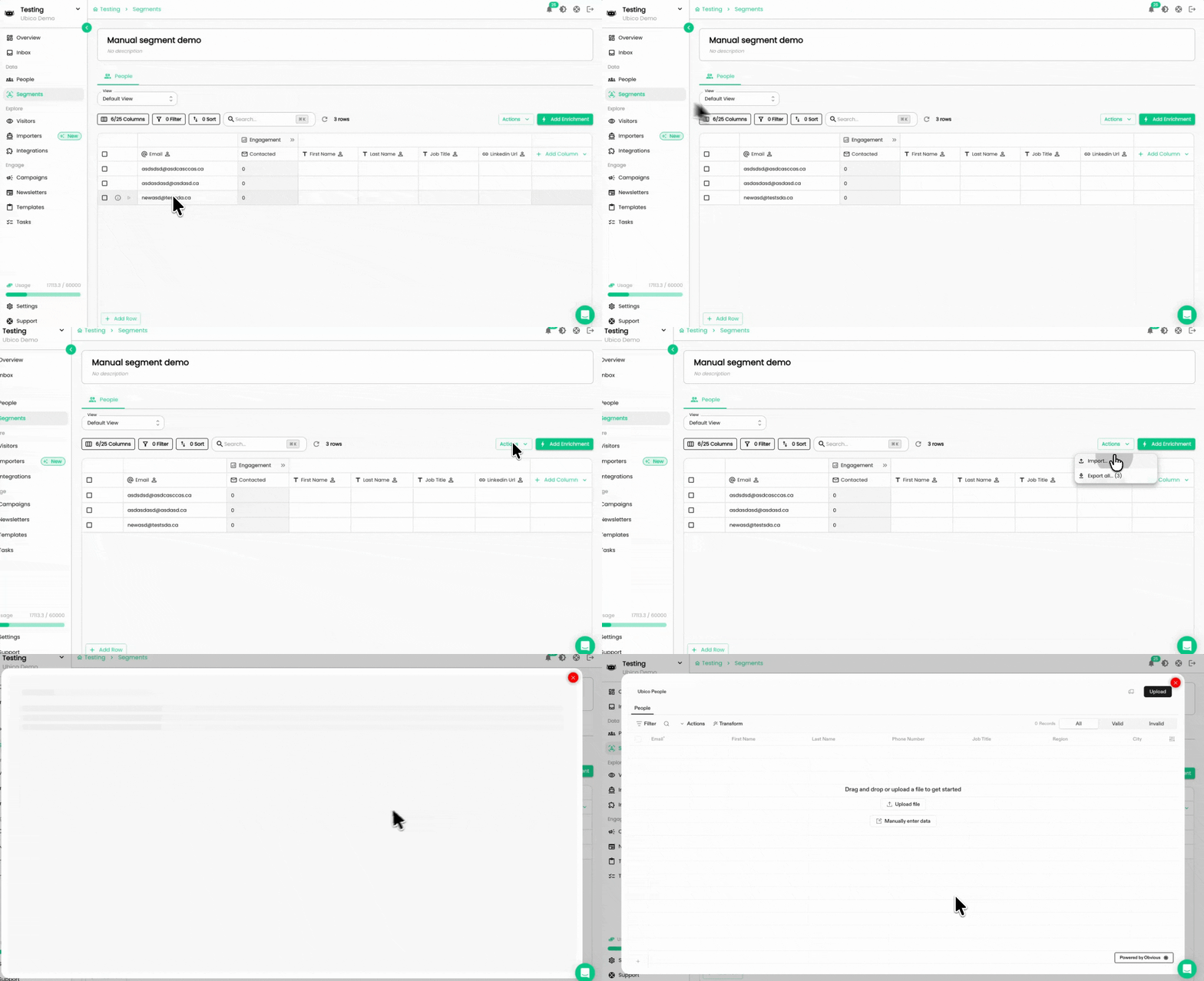
If you need to add new contacts to an existing campaign, you can do this quickly by updating the Manual Segment connected to that campaign. Once contacts are added, Ubico will automatically include them in the ongoing workflow.
Note: You cannot add people to Automated Segment
Follow the steps below:
Step 1 Open the Manual Segment
1. In your Ubico dashboard, go to Segments.
2. Select the Manual Segment that is linked to the campaign you want to update.
Step 2 Add Contacts to the Segment
Once you’re inside the segment:
1. Click Actions in the upper-right corner.
2. Select Import.
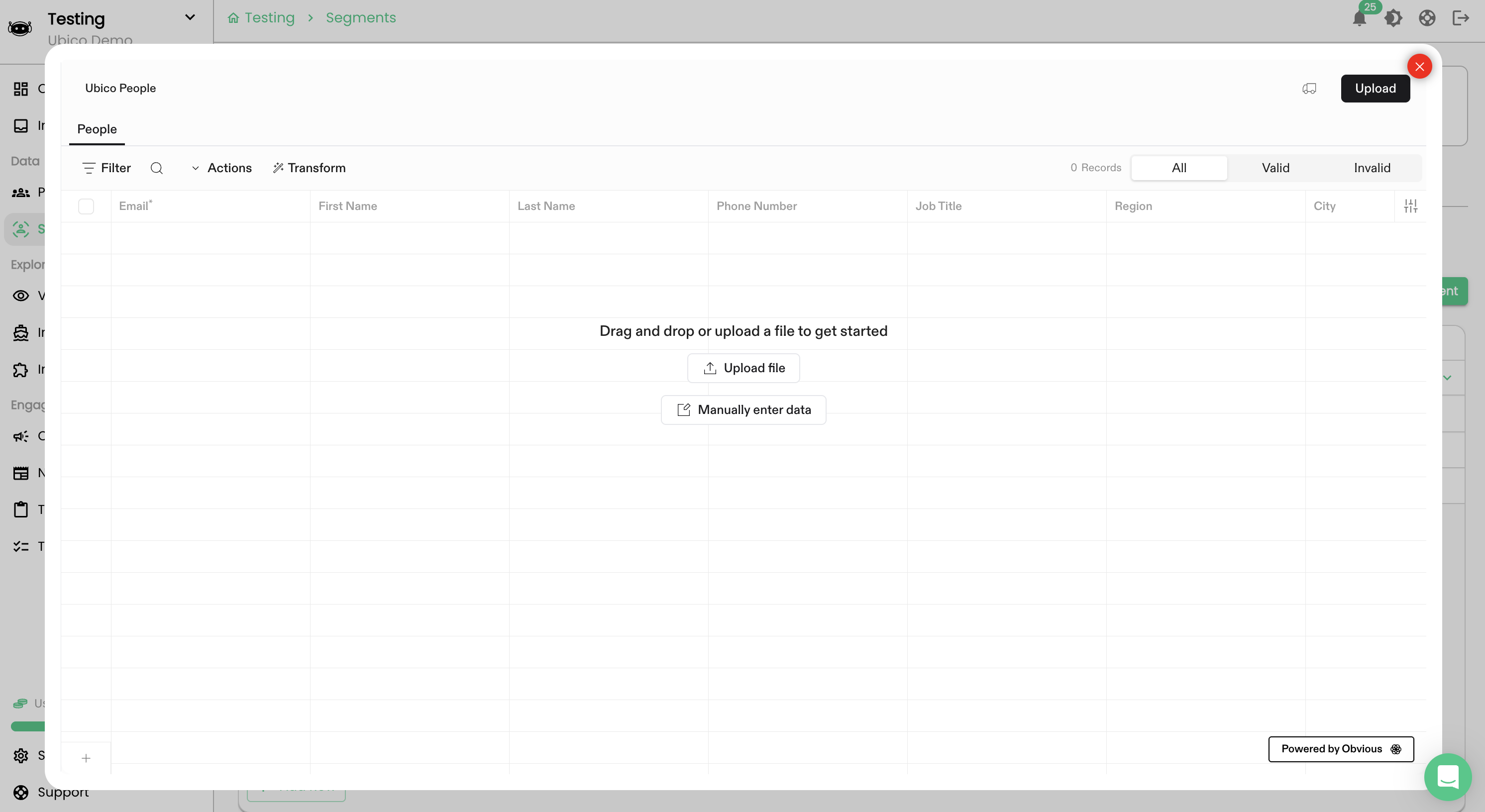
You will now have two options:
Option A :Add Contacts Manually
• Choose Add manually.
• Enter the contact details (first name, last name, email, company, etc.).
• Click Save to add them to the segment.
Option B: Upload a File (CSV/XLSX)
• Choose Upload file.
• Upload a CSV or Excel file containing your contacts.
• Map the fields to Ubico’s format and confirm the import.
Step 3 Contacts Enter the Campaign Automatically
As long as the Manual Segment is already assigned to an active campaign:
• Any newly added contact will automatically enter the sequence.
• They will begin receiving messages according to the campaign schedule.
Tips
• Make sure your file includes email addresses, as they are required.
• If adding contacts manually, double-check spelling to avoid delivery issues.
• For large imports, upload via file for faster processing.